How to use Prêt Track
From the first loan to the return, then the inventory, the people, the reminders and your account. The labels in bold are the ones of the app.
-
Lend a thing
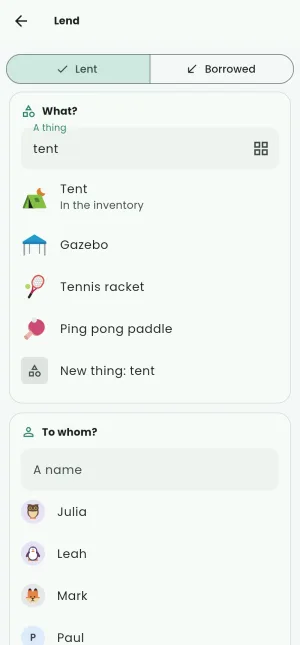
Open Prêt Track, nothing to create first: on the Lent tab, tap Lend. Three questions, one page:
- What? Type the thing: a thing of your inventory, or a new one. The drawings of the catalog that match are offered (a drill, a tent, a book...): pick one, in its color, or a photo, or no picture. A new thing joins the inventory.
- To whom? A person you already know, or a new name.
- When? Back in 1 week, 2 weeks, 1 month, on A date..., or No date. A note too, if it helps (with the bits).
A thing already lent asks before being lent again; several of the same thing (chairs, books) have a quantity.
-
Follow the loans
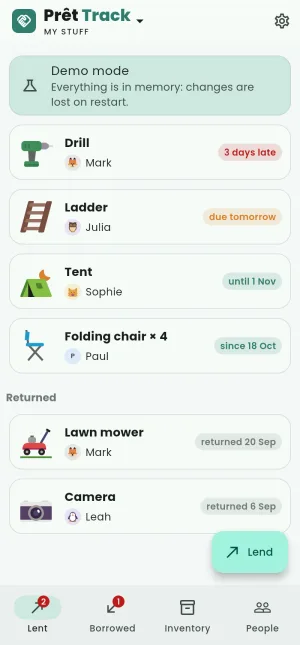
The Lent tab lists what is out: the late loans first (3 days late), then the ones due soon (due tomorrow, due in 4 days), then the others. What came back is further down, under Returned.
Someone lent you something? The Borrowed tab and its Borrow button work the same way, for what you have to give back.
-
A loan
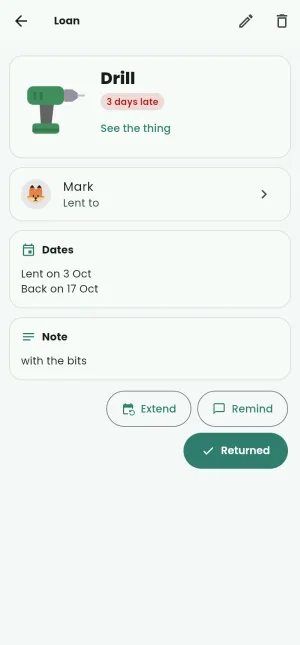
Tap a loan to see it all: the thing, the person, the day it was lent, the day it is due, the day you last reminded. From there:
- Returned (I gave it back for a borrowed thing), with the state on return if something is missing; Not returned if it was a mistake.
- Extend: one more week, two more weeks, one more month, or a date.
- Remind: the message to the borrower, see below.
The thing and the person keep the history of their loans.
-
Ask for it back
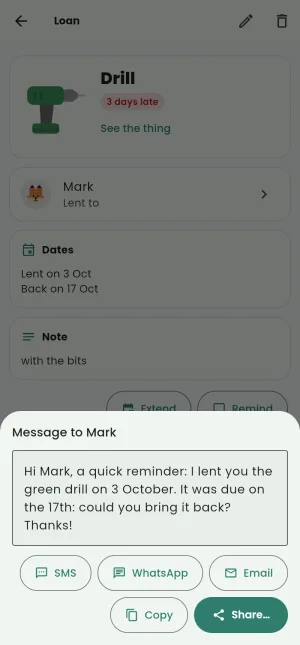
Remind writes the message for you, in the language of the app, here for a drill 3 days late: Hi Mark, a quick reminder: I lent you the green drill on 3 October. It was due on the 17th: could you bring it back? Thanks! For a borrowed thing, it asks whether the person needs it back.
Send it by SMS, WhatsApp or Email, Copy it, or Share… it with any app: it leaves from your own apps, the app never contacts anyone. The loan remembers the day you reminded.
-
The inventory
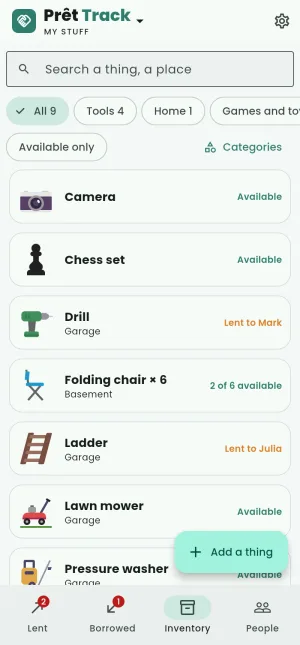
The Inventory tab holds what you own: what you lent, and whatever you add with Add a thing. A thing has a name, a picture, a category, a place (garage, top shelf), a quantity, a value and notes.
Search a thing or a place, filter by category, or keep Available only. A thing given away or lost is archived rather than deleted: its loans stay in the history.
-
The people
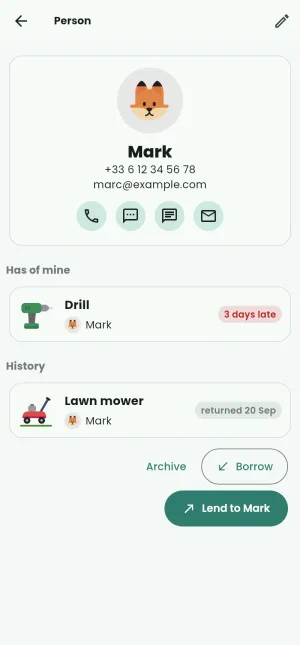
The People tab lists everyone you lend to or borrow from. A person shows what they have of yours (Has of mine), what they lent you (Lent me) and the history; call them or write to them by SMS, WhatsApp or email if you added their number or email, or lend them something in one tap.
-
Lists and categories
Your things, the garage, the club: each list has its own inventory, people and loans. Switch list from the top of the screen, and add, rename or remove lists in Settings, Lists.
The categories (tools, books, games...) come ready, each with its drawing; add yours, and sub categories, in Settings, Categories.
-
Reminders
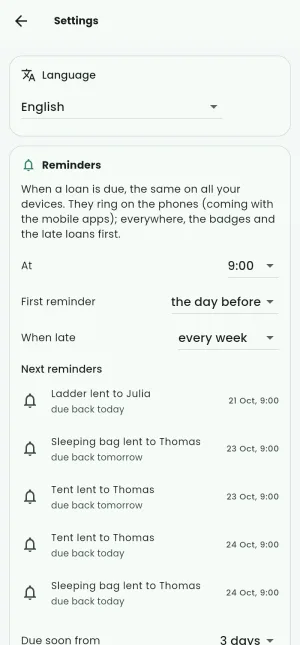
In Settings, Reminders: the first reminder (on the day, the day before, or some days before), the hour, how often when late, and from when a loan counts as due soon. Next reminders shows the coming ones, over all your lists.
The reminders will ring on the phones with the mobile apps, which are coming. Until then, the web app shows the late loans first, everywhere.
-
Your account
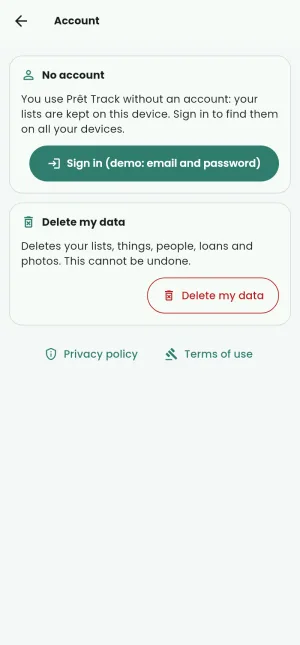
No account to start: the app signs in anonymously by itself, and your lists are kept on this device and in your private area.
In Settings, Account, Sign in or create an account (an email and a password, or Google) to find your lists on all your devices: the lists of the anonymous session come along, their photos included.
Delete my account (Delete my data without an account) deletes your lists, things, people, loans and photos, then your account. It cannot be undone.